
Custom form responses are stored with the member that the form is associated with. Responses to custom form questions can be accessed from reports, the member's profile, and the program and membership page. If you need to export answers, then reports may be the best option for you. Need to make changes to an existing or expired form? Then head to the member information page. Just looking to quickly pull up information for a roster then start from the program or membership.
Reports
You can access the answers from your users' custom forms under the Activity Reports menu in order to export, edit, or delete that information.
- Click on the Reports menu in the leftside navigation bar
- Select Activity Reports
- Choose the report from the Custom Form Reports section
- The most popular reports in this section are Custom Forms by Program
- These reports will allow you to choose a specific program and export the assigned custom form questions/answers you select for export
- The most popular reports in this section are Custom Forms by Program
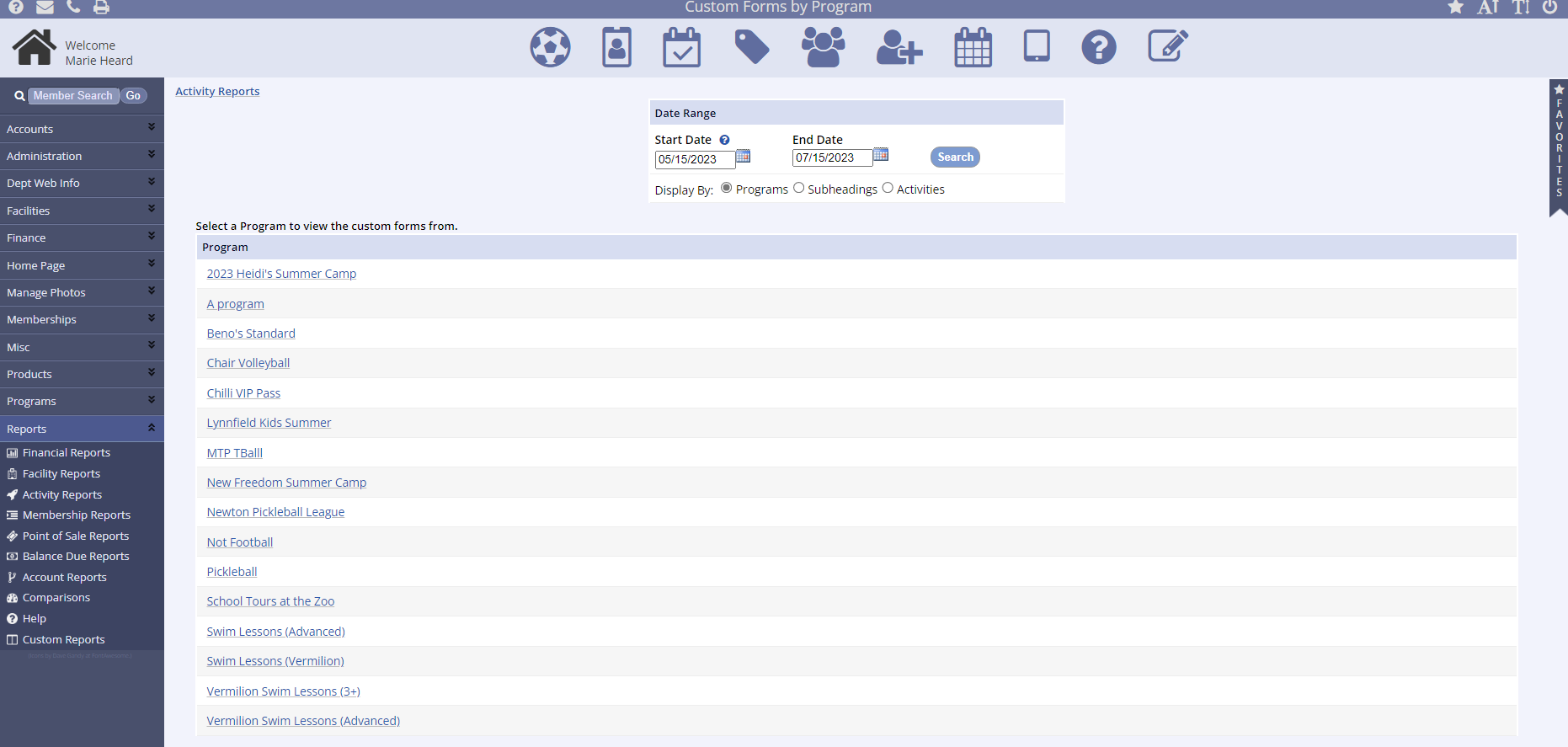
- Once you select the report type, you will need to select the program
- Click on the Program Name
- You can also search with a date range and click Search
- Click on the Program Name

- Choose the custom form from the dropdown
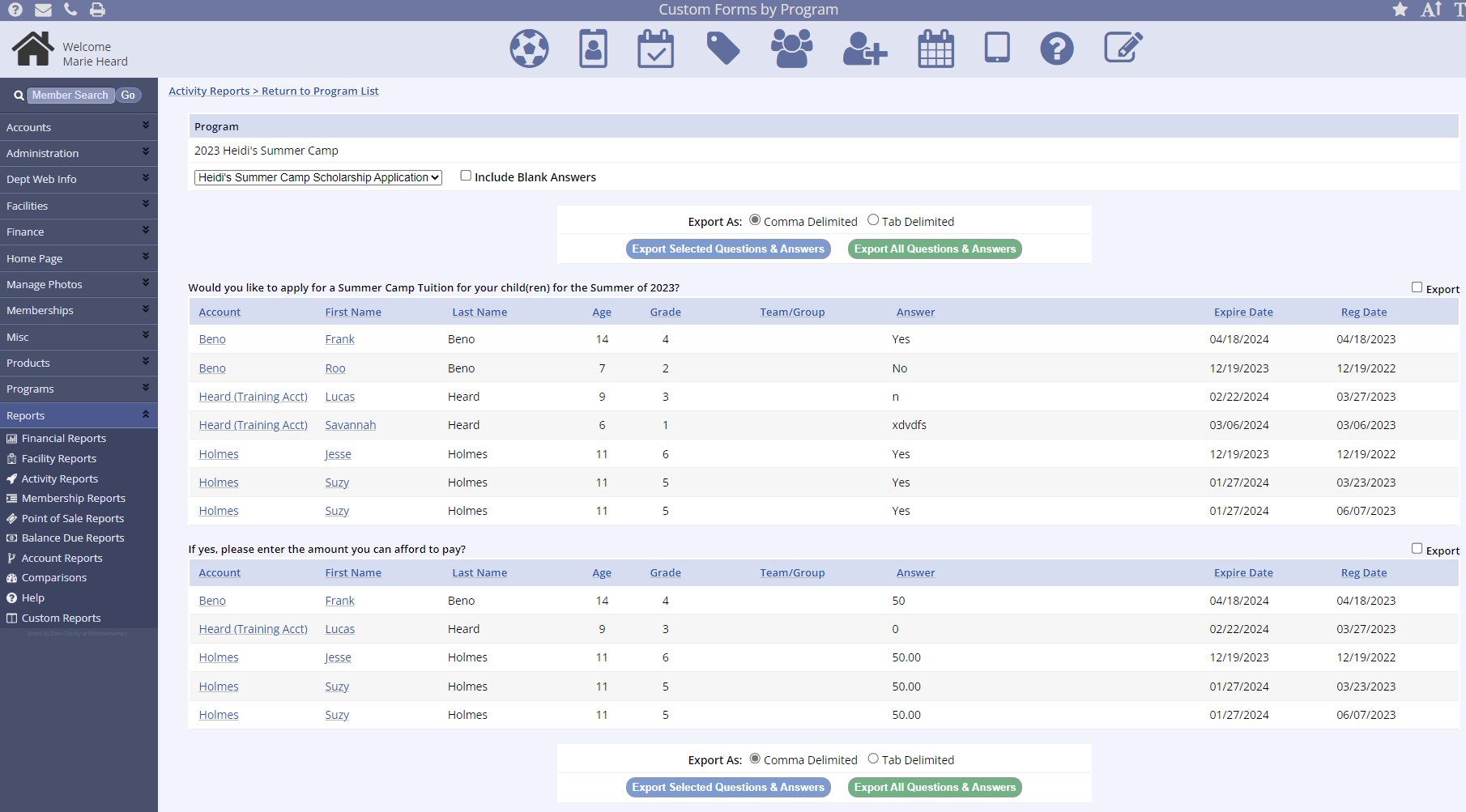
- Check the box if you want to Include Blank Answers
- Finally, select the button to Export Selected Question Answers or Export All Question Answers and run your report
Member Information
Customs forms can be viewed and edited on the management side from the member information page. This allows you to make any necessary update to the form and here you can view expired custom forms as well.
- Search for and select the correct account
- Select the member whose form you wish to see
- Scroll to the bottom on the page where active custom forms are listed
- You can view expired forms by selected the radial option Include Expired
- Select View to see the form
- Select Edit to make changes to the form

Program or Membership Page
Custom forms are quickly accessed through an icon present on memberships and activities that have a custom form set as optional or required in the requirements tab.
- Search for and select the correct Membership or Program
- Click on the custom form icon next to the activity or type/length to view all associated custom forms

This produces a pop-up which contains all custom forms associated with this activity or membership.